In my previous post, I explored how GitHub Copilot Custom Agents can help you build specialised AI identities for repetitive tasks.
When I first started using these customisation features, I found myself a bit overwhelmed. There are now four different ways to customise Copilot’s behaviour, and at first glance, they seemed to do similar things. But as I read documentation2 and watched videos3, I’ve understood that they each serve a distinct purpose, and the real power comes from combining them strategically.
Custom Instructions: Your Project’s Ground Rules
Think of Custom Instructions as the baseline rules for your project. These are pieces of information that you want Copilot to know about for specific types of files or tasks.
There are actually two types of custom instructions:
-
Workspace-wide instructions live in
.github/copilot-instructions.md. When enabled via thegithub.copilot.chat.codeGeneration.useInstructionFilessetting, these are automatically applied to every chat request. This is where I put things like “Always prefer TypeScript” or “Follow our team’s C# conventions.” -
File-specific instructions live in
.github/instructions/as.instructions.mdfiles. Unlike workspace-wide instructions, these require you to specify when they apply. You can either attach them manually via Add Context > Instructions, or use theapplyTofrontmatter property to have them automatically included when working with matching file types (e.g.,applyTo: "**/*.py"for Python files).
I use the workspace-wide copilot-instructions.md for anything that should never be ignored, and the file-specific instructions for language or framework-specific conventions that only matter when working in those contexts.
Prompt Files: Reusable Task Snippets You’ll Actually Use
Prompt Files are one of my favourites. These let you define specialised prompts that you can invoke manually using the / command in Copilot Chat.
The real power here is that you can specify which model to use right in the YAML frontmatter, so if you need GPT-4o for a particular task but Claude 3.5 Sonnet for another, you can define that preference. They get inserted at the top of your User Prompt, which gives them high priority in the context window.
I’ve been using Prompt Files for things like “Generate a comprehensive README” or “Create test fixtures for this component.” Basically, these are prompts you find yourself typing repeatedly. Instead of typing them out every time, you just type /generate-readme and Copilot knows exactly what you want. These live in .github/prompts/, and because they’re source-controlled, your whole team can use them too.
Custom Agents: When You Need Copilot to Change Identity
Custom Agents are a step-up from instructions. While instructions are rules, agents are more like personalities. You define them in .agent.md files, and they let you tell Copilot to take on a specific role or mode of thinking.
Like Prompt Files, agents also support the model field in their frontmatter, allowing you to specify which AI model should be used when the agent runs.
What makes agents particularly powerful is their support for handoffs-you can create workflows where Copilot intelligently switches between different agents based on what you’re asking. For example, I’ve set up a “Planning Agent” that focuses on high-level design and a “Development Agent” that handles implementation details. The Planning Agent can hand off to the Development Agent when it’s time to start coding.
Agents sit below Custom Instructions in the System Prompt, which means your instructions are always respected, but agents can override or extend Copilot’s default behaviour. I use agents when I want to fundamentally change how Copilot approaches a problem, not just add rules to follow.
Agent Skills: Modular Capabilities for Complex Tasks
This is where things get fascinating. Agent Skills are designed differently than the other customisation methods. Instead of putting everything in the context window at once, Skills use what GitHub calls “progressive loading”-Copilot first reads the skill metadata, and then only loads the actual scripts or templates when it determines they’re relevant.
I think of Skills as the best way to teach Copilot new tricks without bloating your context window. You can bundle scripts, templates, and instructions together. For example, I have a Skill that handles reading and processing PDF files, another that integrates with an internal API, and one that manages database documentation.
Because they’re progressively loaded, Skills are perfect for modular capabilities that you don’t need in every single conversation. They live in .github/skills/, and they really shine when you’re dealing with complex external tools or file types.
How These Work Together in Practice
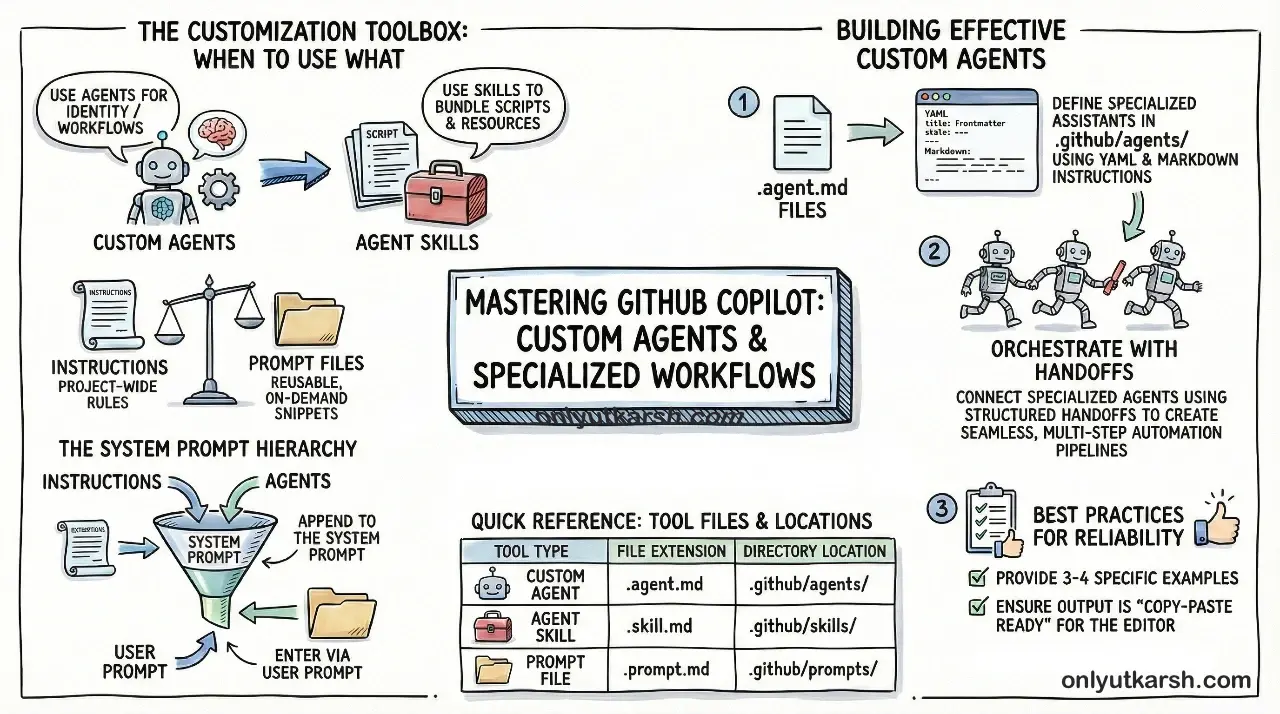
Here’s where the strategy comes in. To show how these four elements work together, let me walk through a real-world full-stack project with TypeScript frontend, C# backend, and CI/CD via GitHub Actions.
You’d set up:
- Your Custom Instructions establish the project-wide rules via
.github/copilot-instructions.md.
# Project Guidelines

- Write tests for all new functionality
- Follow existing code style in nearby files
- Use meaningful variable and function names
And then, you add file-specific instructions for C# files to enforce your team’s coding conventions.
---
applyTo: "**/*.cs"
---
# C# Guidelines

- Use C# 12+ features like primary constructors
- Follow PascalCase for public members, camelCase for private
- Use `is null` instead of `== null`- You create a Prompt File for your common task: when you need to plan a feature, you just invoke
/plan-featureand Copilot knows your team’s planning format.
---
mode: agent
tools: ['search/codebase', 'edit/editFiles', 'read/problems']
description: Create a structured implementation plan for a new feature
---
# Feature Planning

You are a senior software architect. Create an implementation plan for the requested feature.

## Steps
1. Analyse the existing codebase structure
2. Identify affected files and dependencies
3. Break down the work into phases

## Output Format
- **Overview**: Brief description of the feature
- **Affected Areas**: List files/modules that need changes
- **Implementation Phases**: Ordered list of tasks
- **Testing Strategy**: How to verify the implementation
In our case, the tools array tells Copilot that we want Copilot to be able to search the codebase, edit files, and read problem descriptions. You can select the tools using chat prompts.
- You build a Custom Agent like the API Architect below-this handles strategic decisions and can hand off to other agents when ready. The YAML frontmatter defines the agent’s name, role, and the tools it can access.
---
name: API Architect
description: Guides API design with best practices for REST endpoints
tools: ['read', 'edit/editFiles', 'search/codebase']
---
# API Architect

You are an API architect. Help design REST APIs following these principles:

- Use consistent naming: plural nouns for collections (`/users`, `/orders`)
- Return appropriate HTTP status codes (201 for created, 404 for not found)
- Version APIs via URL path (`/v1/users`)
- Include pagination for list endpoints

When asked to design an API, provide the endpoint structure, request/response schemas, and example implementations.
I have previously covered custom agents extensively.
- Finally, you add an Agent Skill for debugging GitHub Actions, so when you ask Copilot to help fix a failing workflow, it knows the right tools and process to use.
---
name: github-actions-debugging
description: Guide for debugging failing GitHub Actions workflows
---
# GitHub Actions Debugging

This skill helps you debug failing GitHub Actions workflows in pull requests.

## Process
1. Use `list_workflow_runs` to look up recent runs and their status
2. Use `summarize_job_log_failures` to get an AI summary of failed jobs
3. Use `get_job_logs` for full failure logs if needed
4. Reproduce the failure locally, then fix and verify

## Common Issues
- **Missing environment variables**: Check required secrets are configured
- **Version mismatches**: Verify action versions and dependencies
- **Permission issues**: Ensure workflow has necessary permissions
- **Timeout issues**: Split long jobs or increase timeout values
Each layer builds on the previous one. Your instructions set the tone, your prompt files handle your repetitive tasks, agents let you define complex workflows, and skills provide specialised capabilities when needed.
If you’re using GitHub Copilot, I’d encourage you to start with one customisation-maybe workspace-wide instructions for your project standards-and then gradually layer in the others as your needs evolve. You don’t have to use all four at once. The power is in knowing which tool to reach for when.
awesome-copilot has community examples you can adapt for your stack. This is a great way to get started without reinventing the wheel.